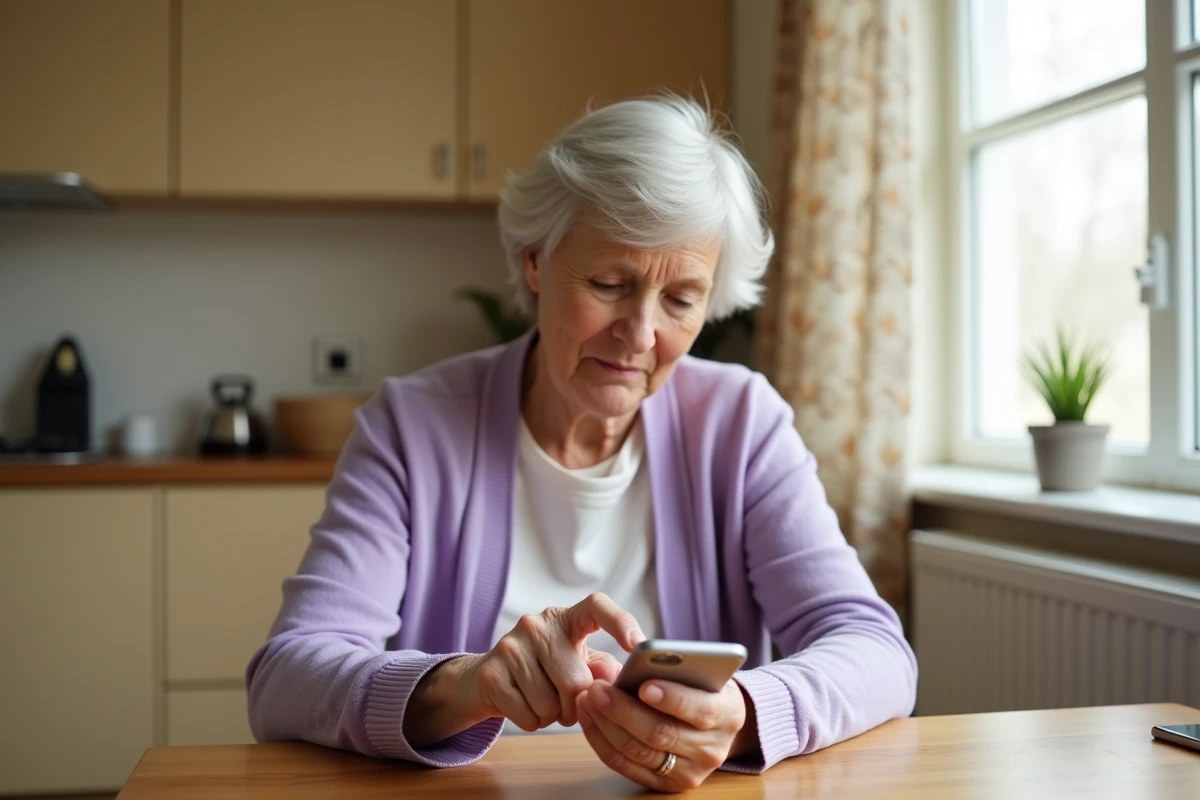
Doro phones run on Android, but their simplified interface hides some of the system’s functions. Installing and using WhatsApp on these devices is still possible, provided you know where to look and what to configure. The process is not as smooth as on a standard smartphone, and some Doro models simply do not support the application.
This guide details the real friction points encountered by senior users, beyond generic tutorials that merely list installation steps.
End of 2G and obsolescence of older Doro models
Before even discussing WhatsApp, a hardware constraint arises. French operators are gradually decommissioning the 2G network. The oldest Doro models, designed to operate on this network, are losing their basic connectivity. Without a data network, WhatsApp cannot send or receive messages.
Clamshell or physical-button Doro phones (Leva 1 range, some models prior to the 8080) do not have the necessary Android system to run WhatsApp. Confusion is common: a user buys a Doro thinking they can install the application, while their model does not allow it.
To check compatibility, you need to access the phone’s settings and look for the installed Android version. WhatsApp requires a minimum version of Android to function. The Doro 8080, 8100, and Aurora range (A10, A20, A30) are confirmed compatible. For more information on the issue of Doro and WhatsApp for seniors, several resources detail the specifics of each model.
Google Gemini on Doro Aurora: what it changes for WhatsApp
The Aurora range integrates Google Gemini as a voice assistant. This feature, which appeared on recent models, goes beyond simply replacing Google Assistant. For a senior user, the voice dictation enhanced by Gemini simplifies message writing.
Typing text on a touchscreen remains a barrier for many elderly people. The voice assistant allows dictating a WhatsApp message instead of typing it on the keyboard. Gemini’s voice recognition handles longer sentences and regional accents better than previous versions of Android dictation.
Field feedback varies on this point: some users report smooth recognition of spoken French, while others encounter transcription errors on proper names or familiar terms. The quality of the phone’s built-in microphone also plays a role. In a quiet environment, dictation works reliably. In a noisy place, results degrade.
Activating voice dictation in WhatsApp
On a Doro Aurora, open WhatsApp, select a conversation, then tap the microphone icon next to the input field. Speaking slowly and pausing between sentences helps produce cleaner text. Reviewing the message before sending is a useful precaution, as the transcription may insert incorrect words without warning.
WhatsApp video call on Doro phone: technical limitations
The video call is often the main reason a senior installs WhatsApp. Seeing their grandchildren, having face-to-face conversations with a distant loved one. On a compatible Doro, the function exists and works.
However, the quality of the experience depends on several factors that classic tutorials overlook:
- A Wi-Fi connection is preferable to 4G for a stable video call. On entry-level Doro models, the processor limits fluidity on 4G
- The front camera of Doro produces a decent image in good lighting, but video calls in low light give a grainy image
- The battery life drops quickly during a video call. Ensuring sufficient charge or plugging in the phone during the conversation prevents a cut-off in the middle of the exchange
Sound also deserves attention. Doro phones have a speaker designed to be louder than average, which helps hearing-impaired individuals during regular calls. During a WhatsApp video call, this same speaker can cause echo if the volume is too high. Lowering the sound slightly and speaking facing the phone reduces this issue.
WhatsApp settings to modify after installation on a Doro
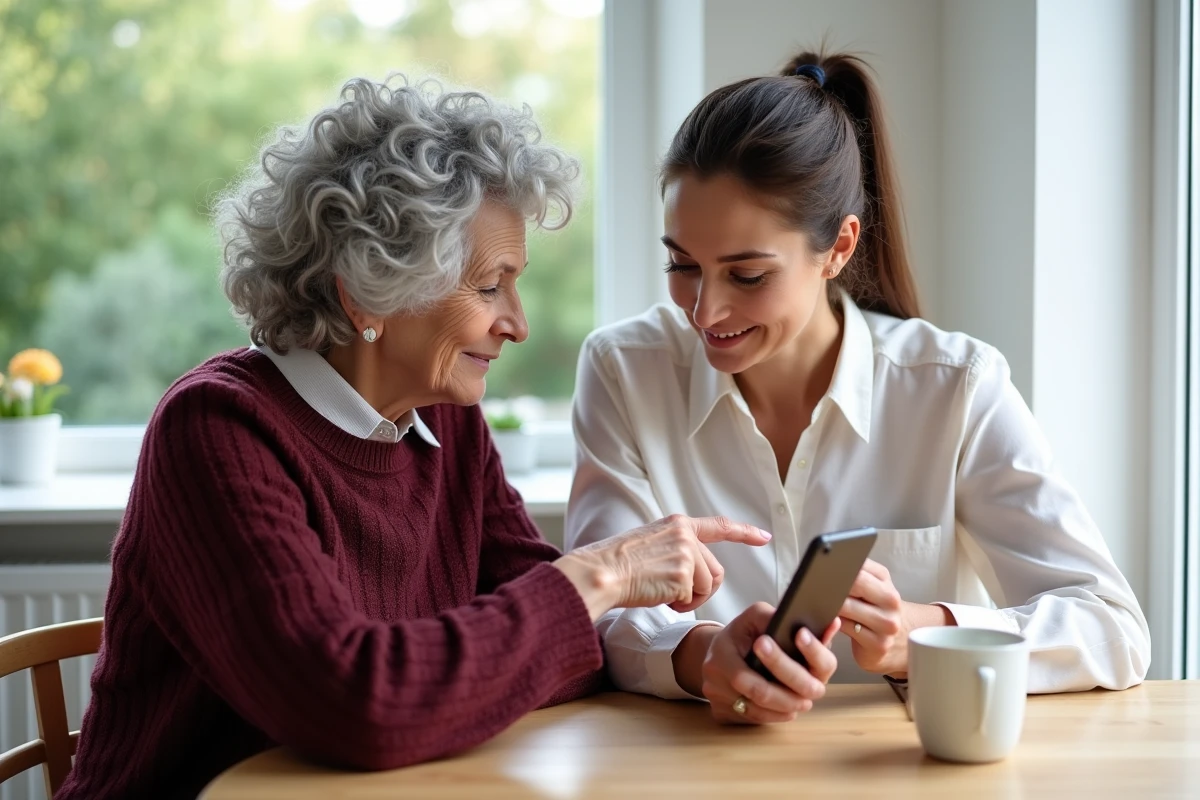
Once WhatsApp is installed, several settings deserve special attention to adapt the application for senior use.
Text size and notifications
WhatsApp offers to increase the font size in its own settings (Settings > Chats > Font size). Choosing “Large” improves readability. Combining this setting with Android’s accessibility zoom provides a comfortable display without installing third-party applications.
The default notifications from WhatsApp are numerous. For a senior, the constant stream of vibrations and sounds can be confusing. Disabling group notifications (if the person is enrolled in active family groups) and keeping only alerts for individual conversations reduces confusion.
Storage and updates
Doro phones have limited storage space. WhatsApp accumulates photos and videos received in conversations, which saturates memory over the months. Activating automatic downloads only on Wi-Fi and regularly deleting old media in the app settings preserves available space.
- Go to Settings > Storage and data > Automatic media download
- Uncheck automatic download via mobile data for photos and videos
- Check the space used by WhatsApp in Settings > Storage and data > Manage storage
A Doro that slows down after a few months often has a saturated storage issue, not a hardware defect. This simple diagnosis avoids unnecessary trips to the store.
Using WhatsApp on a Doro phone relies less on the difficulty of installation than on adapting the settings for daily use. A recent model from the Aurora range offers a smoother experience than the older 8080 or 8100, particularly thanks to the built-in voice assistant. The main constraint remains the limited storage and management of updates, two points that the senior’s entourage can monitor remotely via Android’s family sharing settings.